
Getting started · The complete guide
IPTV Box Buying Guide: Find the Best IPTV Subscription for Your Home
Choose an IPTV box, compare providers, test a subscription, and build a streaming setup that works for the people who use it. A practical guide from first purchase to troubleshooting.
Table of contents · 20 sections
Buying an IPTV box seems simple until you start shopping. One listing promises effortless 4K. Another sells a box with a subscription already installed. A third looks almost identical but costs twice as much. Meanwhile, every provider seems to describe itself as the best IPTV service, usually beside a channel count large enough to make comparison feel pointless.
The useful questions are more ordinary. Will the channels you actually watch work on your television? Can someone else in the house use the remote without a lesson? Will the picture hold together at the time you normally sit down? And if something goes wrong, will your IPTV provider help you find the cause?
This guide takes those questions in order. It explains what the hardware does, how an IPTV subscription fits into the setup, what to test before paying for a longer plan, and how to separate a provider problem from a problem in your living room. You will also find a comparison table, a practical trial checklist, setup advice, and fixes for common playback issues.
A note about this guide: SMARTSGI sells IPTV subscriptions. This is our buying and setup guide, rather than an independent ranking or a claim that we have laboratory-tested every device. Where a feature depends on a particular model, app, country, or subscription, confirm it before buying. Examples involving prices or household situations are illustrative.
Start with what you watch, not with the box
Before looking at hardware, write down a normal week's viewing. Be specific. “Sports” could mean one local match on Saturday, several international leagues, or a racing series that starts before breakfast. “Movies” might mean subtitles in two languages, a particular on-demand library, or the ability to pause halfway through and resume tomorrow. Those differences change what a good setup looks like.
Make three short lists: channels you must have, features you would appreciate, and things you do not care about. Put local news, preferred commentary, children's programming, and any regional feeds on the first list where relevant. Put catch-up, recording, multiple simultaneous streams, and a detailed program guide on the second. Do not let a long catalog move a missing essential into the “probably fine” category.
Then look at who will use the system. A household sharing one television needs a different arrangement from a household watching on three screens at once. Someone who changes channels frequently may care more about guide speed and number buttons than an elaborate home screen. Someone who watches one film each evening may be perfectly happy with a straightforward television app.
Finally, consider the room. Note the television model, the distance to the router, whether an Ethernet cable is possible, and whether a soundbar or receiver sits between the box and the screen. That little inventory prevents expensive guesses later. A device can be excellent on paper and still be awkward for the equipment already in your home.
Your starting point should now be a sentence: “I need these channels, on this screen, for these people, at these times.” Keep it nearby when comparing an IPTV subscription. It is a better buying filter than any promise about the total number of channels.
What an IPTV box does, and what it does not
An IPTV box receives television delivered over an internet connection and turns it into video and audio your television can play. Most external boxes connect through HDMI. The device runs an operating system and a player app, while your network carries the stream from the service to your home. Depending on the service, the app may also show a channel guide, an on-demand catalog, or previously broadcast programs.
Three purchases are often mixed together in advertising: the device, the player, and the subscription. The device is the physical hardware. The player is the software you use to browse and watch. The IPTV subscription supplies access to the service under its terms. Sometimes a bundle includes all three, but you should still understand them separately. Replacing the box does not automatically replace the subscription, and paying for a player does not automatically buy television channels.
An IPTV provider might offer its own app or support a compatible third-party player. Login methods vary. Some use a username, password, and server address; others use a playlist link or a device registration process. Ask which method is supported on your exact device before buying hardware. A box described as “IPTV compatible” may still be incompatible with the particular service or login method you want.
The box cannot improve a poor source into a genuinely detailed picture. It cannot create missing subtitles, invent a catch-up archive, or guarantee that a provider carries a specific channel. It also cannot supply more simultaneous connections than your plan allows. Expensive hardware can make navigation faster and support more playback formats, but those are different benefits from having a dependable service.
A useful first purchase is therefore sometimes no purchase at all. If your television already runs a supported player well, test the subscription there. Buy an external device when you can name the problem it will solve: sluggish menus, unsupported software, unreliable connectivity, or a remote that makes everyday viewing harder than it should be.
Do you need an external box or a Smart TV app?
A Smart TV app is the tidiest arrangement when it works well. There is one remote, fewer cables, and no extra device to position behind the screen. For a viewer who opens a small favorites list and watches a few familiar channels, that simplicity can matter more than having every possible playback setting. Start by checking the television's model year and operating system, then ask whether the required player is available in its app store.
An external IPTV box becomes attractive when the television's software is the weak point. You might notice slow guide navigation, repeated app crashes, or missing features that a supported external player offers. A separate box also lets you replace the streaming hardware without replacing the screen. That can be useful when the television still has a good picture but its smart interface feels dated.
Avoid assuming that a box is automatically faster. A poorly supported bargain device can be less pleasant than the television app you already have. Equally, an expensive device may deliver little improvement if the actual problem is weak Wi-Fi or an overloaded service. Compare the same channel on the same network where possible, with the same account and a similar playback quality. Changing several things at once makes the result difficult to interpret.
There are practical tradeoffs as well. An external device needs power and an HDMI port. You may have to teach the remote to control television volume, or check whether HDMI-CEC behaves reliably with your equipment. A family member who already knows the television interface may prefer that familiarity. Accessibility features, subtitle controls, and readable guide text can outweigh a small speed advantage.
If you are unsure, give the built-in app a fair trial first. Spend an evening using it as you normally would, including searching, changing audio tracks, and returning after the television sleeps. If the experience is comfortable, keep it. If you can identify a recurring limitation, choose hardware specifically to address it.
Compare the main types of streaming device
Device categories are more helpful than a universal winner. The operating system, supported apps, remote, and update policy shape daily use more than the label “IPTV box.” Individual models within a category differ, sometimes substantially, so use the comparison below as a starting point and check the manufacturer's current specifications before ordering.
| Device type | Why it may suit you | What to check before buying |
|---|---|---|
| Built-in Smart TV app | A simple setup with one remote | Exact TV model, player availability, guide speed, update support |
| Certified Android TV or Google TV device | Television-focused apps and a broad choice of players | Certification, supported login method, Ethernet options, manufacturer updates |
| Fire TV device | A compact streaming setup if your required player is supported | Exact model and OS, app availability in your region, power and adapter requirements |
| Apple TV | A television interface that may fit an existing Apple household | App availability, provider compatibility, model-specific connections and playback support |
| Dedicated IPTV receiver | A service-specific interface and potentially familiar channel navigation | Exact portal or login support, software updates, service flexibility, return terms |
For an Android-based device, distinguish a television-focused operating system from a generic mobile Android installation placed in a box. An interface designed for touch can be frustrating with a remote. App store availability and streaming certification can also differ. Read the actual product documentation instead of relying on a listing that simply says “Android.”
Fire TV and Apple TV buyers should confirm the particular player first. A familiar brand does not mean every IPTV application is available, and support can vary between generations and operating systems. Ask the provider to name the supported app for your exact model, then verify that app through the relevant official store or developer documentation.
Dedicated receivers can suit people who value a focused television experience, but find out how easily the device can move to another provider. If a seller controls the hardware configuration and the subscription together, ask what happens when the subscription ends. Ownership should mean you understand what remains usable, how updates arrive, and how to reset the device if needed.
The hardware details worth paying for
Start with networking. If you can run a cable, a device with a suitable Ethernet connection can make a living-room setup easier to troubleshoot. If you need an adapter, check compatibility with the exact model and its power requirements. A port printed on a product page is more useful than a vague promise of “ultra-fast streaming,” but even wired networking does not guarantee that the provider's stream will be reliable.
Next, consider playback support. Resolution, frame rate, video codec, HDR format, and audio format are separate specifications. A box that outputs a 4K menu does not necessarily support every 4K stream in every player. Your service, app, device, television, and any receiver in the chain must work together. Ask about the formats you will actually use rather than paying for a list of features you may never encounter.
Memory and storage affect usability, but larger numbers are not a complete performance test. A well-maintained player on modest hardware can be more comfortable than a cluttered device with impressive specifications. Look for responsive guide navigation, reliable app switching, and enough storage for the applications you intend to keep. If you want local recording, confirm that the player supports it and that the device can write to suitable storage.
The remote deserves serious attention. Try to picture changing channels in a dark room, opening the guide, selecting subtitles, and returning to the previous channel. Those are actions you may repeat every day. Button placement, a clear back button, and dependable volume control can be more valuable than another advertised processor core. Voice control is useful only if it works with the tasks and apps you need.
Finally, check support beyond the return window. Look for an identifiable manufacturer, a clear update process, and documentation that names the model precisely. Google explains what Play Protect certification means for Android devices. Certification is a useful check for relevant Android hardware; it is not a guarantee that an IPTV service has the channels, rights, or reliability you want.
What “best IPTV” should mean for your household
Searching for the best IPTV service tends to produce rankings. Rankings are easy to scan, but they can conceal the most important differences. A service that suits a viewer in one country may lack the regional feed another viewer needs. A provider with an extensive movie catalog may have a guide that is inconvenient for someone who mostly watches live television. Your priorities need to lead the comparison.
Our best IPTV guide for US viewers brings together the main buying checks and current SMARTSGI plan prices. Use it alongside your shortlist.
Judge the basics first. Can you receive the specific channels you asked about? Are the names and language options correct? Does the guide show usable information in your time zone? Does playback remain comfortable during your normal viewing hours? A stable favorites list with the programs you want is worth more than thousands of entries you will never open.
Then examine the terms. How many streams can run at once? Can you use the account outside your home network? Are recording or catch-up included, and on which channels? Does a player license cost extra? What happens at renewal? A provider should be able to answer these questions in ordinary language before taking payment. Save the answers so you can compare them with the experience during the trial.
Customer support is part of the product. Ask one real compatibility question rather than merely asking whether the service is good. Give your device model and the feature you need. A useful reply should explain what to install, what is supported, and what remains uncertain. A fast response that avoids the question is less helpful than a slightly slower response that solves it.
SMARTSGI is one option to assess through the same process. You can review our IPTV subscription information, compare it with your requirements, and ask us to confirm the details that matter to you. We recommend testing the actual setup before making a longer commitment, including when you are considering our own service.
How to check an IPTV provider before paying
A polished website is a useful beginning, but it does not answer everything. Look for an identifiable support channel, clear subscription conditions, and a consistent explanation of what you are buying. Read the refund policy before payment rather than after a problem. If a seller's checkout terms differ from a message in a chat, ask for clarification and keep a copy of the final answer.
Content availability needs careful wording. A list of channel names is not proof that a service is authorized to distribute them in your country. Device compatibility is not proof either. Ask the provider about the source and availability of the channels you want, including any territorial limits. Choose services with clear authorization for the content they offer. A logo, payment receipt, or working trial alone cannot establish those rights.
Do not rely on a single review score. Look for detailed reports that name the device, location, viewing time, and issue. A complaint saying “buffers constantly” is hard to interpret without knowing the connection and player. Equally, a glowing review that repeats a sales pitch gives you little evidence. Recent, specific descriptions can help you form questions, but your own trial is still the relevant test for your household.
Be cautious about promises that remove every possible limitation. No provider controls your router, every internet route, every player update, and every television setting. Claims of flawless playback everywhere, permanent access to everything, or guaranteed future channel availability deserve questions. Clear explanations of supported devices, maintenance, and service conditions are more useful than absolute assurances.
Ask what happens when something stops working. Is there a status page or a support process? What information should you provide? Can the account be moved when you replace a device? A dependable relationship is partly about getting ordinary problems resolved without starting from scratch. Before buying, make sure you know who will help and how to reach them.
Choose an IPTV subscription without overcommitting
A longer plan can have a lower monthly equivalent, but that number only helps if the service continues to suit you. Your viewing habits may change. A player may become unavailable on your device. You might move home or discover that the second screen needs an extra connection. Early flexibility has value, especially when you are still learning how the service behaves in your home.
Start by comparing the total cost over the same period. Include the subscription, any required player license, extra connections, hardware, adapters, and taxes where applicable. If a plan advertises several devices, ask whether that means several registered devices or several simultaneous streams. Those phrases can describe very different limits. A household cannot watch three programs at once simply because three devices are allowed to sign in.
Here is a hypothetical example. One setup costs $180 for a year of service, plus $30 for a player and $90 for hardware. Another costs $22 a month and works on a device you already own. The first-year totals are $300 and $264. That does not make the second offer automatically better; it shows why a low subscription headline can hide a higher initial cost. Use the actual quotes you receive for your own calculation.
Check renewal conditions with the same care. Is the renewal manual or automatic? Does the introductory price continue? What is the deadline for cancellation? If you pay for an annual plan, what happens if a channel you rely on disappears? Avoid assuming the answer based on another streaming service. Each provider's written terms need to stand on their own.
For current SMARTSGI options, use the IPTV plans and pricing page and read our refund and cancellation policy. Confirm your device, required connections, and any player costs with support before choosing a term. Published offers can change, so the live plan details should take priority over a price mentioned in an older article or screenshot.
Run a trial that tells you something useful
A trial is most valuable when you use it like a normal evening. Do not spend the entire period jumping through unfamiliar channels. Install the intended player on the intended device, sit in the usual room, and watch the programs you would ordinarily watch. Testing only on a phone beside the router tells you little about a television on the other side of the house.
Choose several representative channels: a local station, a channel with fast movement, a general entertainment channel, and a feed in any language you need. Open each long enough to notice freezes, sound problems, or guide errors. If there are different quality versions, compare them. Keep notes simple: channel, time, device, connection type, and what happened. Specific observations make support much more useful.
Try the features you expect to use after paying. Change the audio track, enable subtitles, create favorites, search the guide, and return after putting the device to sleep. If catch-up is advertised, test a program that should be available and check where playback starts. If two simultaneous connections are included in the trial, test both. If they are not included, ask how you can verify that requirement before purchase.
Watch during your normal busy period if the trial length allows it. A weekday morning test cannot establish how a service performs during the evening program you care about. At the same time, one good evening is not proof of permanent reliability. Treat the result as evidence about your setup, with a clear date and conditions, rather than a guarantee about the future.
Before the trial ends, send support one genuine question from your notes. Maybe a guide entry is wrong or one audio track is missing. The response tells you something about the service you will actually receive. You can request a SMARTSGI trial and use this process to decide whether the experience meets your own requirements.
Get the home network ready for television
The speed on your broadband package is not necessarily the speed available behind your television. Walls, neighboring networks, router placement, and competing activity all affect the connection your IPTV box receives. Test near the viewing device, then compare with a wired connection if possible. A laptop beside the router is a useful reference point, but it is a different location and may have different wireless hardware.
For context, Netflix's internet speed guidance currently lists 3 Mbps for 720p, 5 Mbps for 1080p, and 15 Mbps for 4K. Those are Netflix's recommendations for its own service, not universal IPTV requirements. Your provider's bitrate and delivery method may differ. Ask for the requirements for the streams you will use and leave capacity for the rest of the household.
Think about stability as well as a peak result. A stream can struggle when the connection briefly drops below the needed rate, even if a speed test produces a large number. Run more than one test and note whether trouble coincides with downloads, cloud backups, or other viewers. Cloudflare's speed test includes measurements beyond throughput, such as jitter and packet loss; it is a diagnostic aid, not a direct test of your provider's server.
If Ethernet is possible, try it before buying more equipment. It removes the wireless hop from that part of the setup and can help isolate a problem. Google's streaming-device connection troubleshooting also discusses wired adapters and wireless placement. Check the adapter and device requirements carefully, and do not assume that every USB port or power supply will work.
When a cable is impractical, give the wireless connection a fair chance. Avoid hiding the device in a closed cabinet or placing the router behind dense furniture. Compare supported Wi-Fi bands in the actual room instead of assuming one is always better. The goal is a repeatable connection where you watch, rather than a speed-test screenshot that looks impressive somewhere else.
Set up your IPTV box step by step
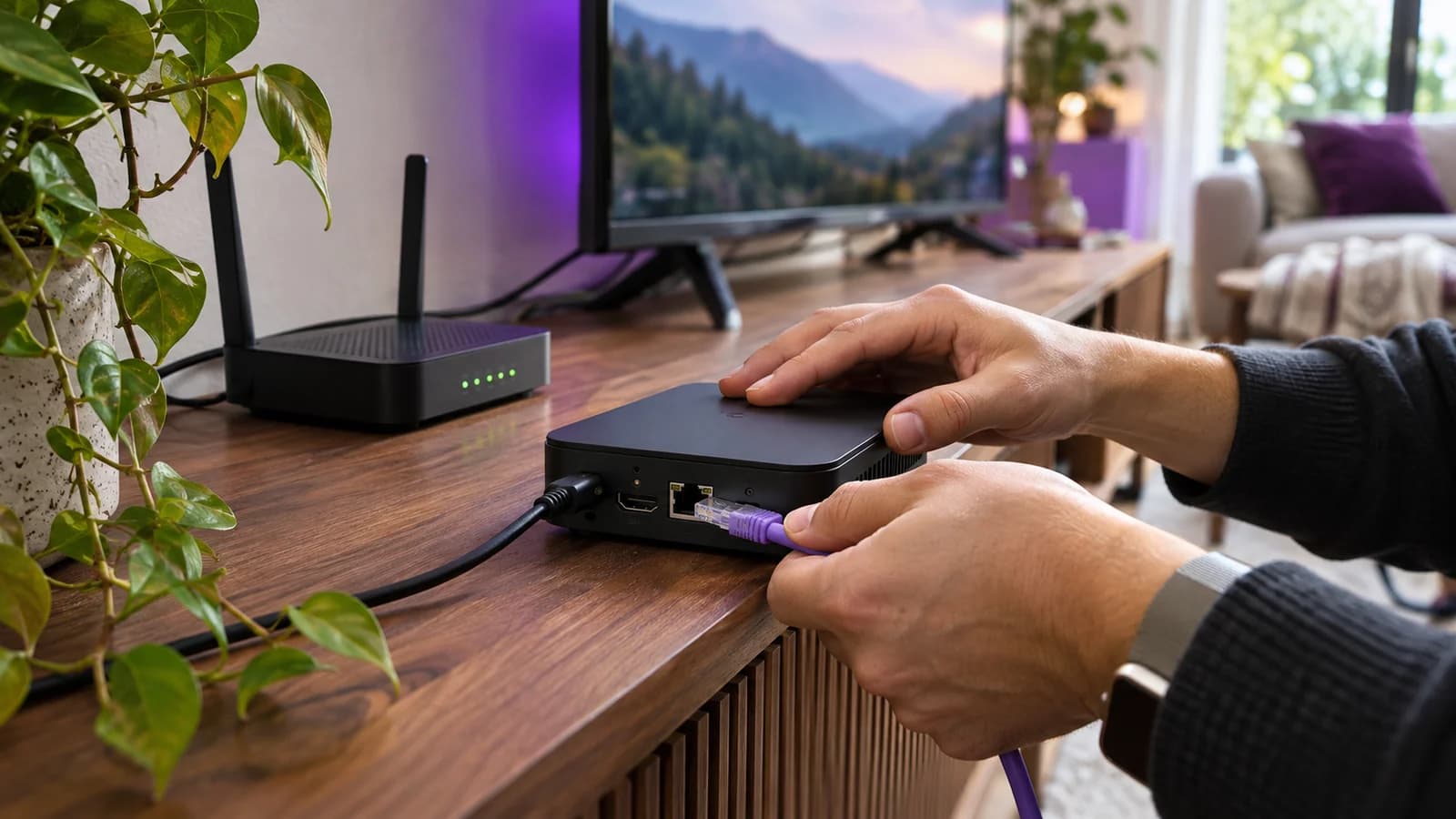
Begin with the hardware manufacturer's setup instructions. Connect the device to an appropriate television input, use the recommended power supply, and complete any system updates. Give the box ventilation and make sure the remote works before adding accounts. If the screen keeps going blank during this initial setup, resolve the HDMI or power issue first; a subscription cannot fix a connection that is already unstable at the home screen.
Install the player your provider supports for your exact device. Use the official app store or the developer's documented distribution method. Check the developer name and avoid lookalike download pages. A random installation file shared in a comment thread is a poor foundation for a device that may also hold your email address, payment settings, or other streaming accounts.
Enter the login details exactly as supplied. A server address, playlist link, username, and password are different fields, and not every player uses the same login screen. Extra spaces and an incorrect character can stop the setup before playback begins. Keep credentials private. A playlist URL may contain your account information, so do not post it in a public forum or include it in an unredacted screenshot.
Once the account loads, check the time zone and guide settings. Open a known live channel, verify the sound, and compare the guide with what is actually playing. Create a small favorites list immediately. This makes testing easier and gives everyone in the house a manageable starting point instead of an enormous catalog. Add subtitle and audio preferences where the player supports them.
Finish by restarting the app and waking the box from sleep. Confirm that the account remains available and the remote can return you to the guide. Then record the player name and version somewhere accessible. Our installation tutorials provide a starting point, and SMARTSGI support can help confirm which instructions match your device and subscription.
Make the picture look right before chasing 4K
A sharp picture depends on the source, compression, display, and playback chain together. The resolution label alone cannot tell you how much detail is actually present. An upscaled channel may arrive in a 4K-sized frame without looking like native 4K footage. Likewise, a heavily compressed stream can look soft or blocky despite a high output resolution. Compare faces, small text, and motion, not just the label in the player.
Start with a known, reasonably detailed channel and your television's sensible default picture mode. If colors look strange, check whether the box is forcing an output format that does not suit the content or screen. HDR support on the device does not mean all programs are HDR. Your television, player, and any receiver also need to support the format being used.
Motion deserves its own check, especially for sport. A mismatch between content frame rate and display output can make movement look uneven even when the network is stable. On supported Apple TV setups, Apple documents frame-rate and dynamic-range matching. The exact behavior depends on the equipment and app. A brief display transition during a format change is different from a channel repeatedly buffering during playback.
Audio issues may also come from the equipment chain. If one format produces silence, test a simpler stereo output before assuming the channel has no sound. Check the soundbar or receiver input and the player's audio settings. If speech arrives before or after the picture, determine whether the delay affects every app or only one channel. That distinction helps you decide whether to adjust the television or contact the provider.
Give yourself permission to use a stable lower-resolution stream when appropriate. On a smaller screen or from a longer viewing distance, a clean HD feed may be comfortable to watch and easier on a constrained connection. The best IPTV experience is the one you enjoy for a full program, with clear sound and consistent motion, rather than the highest label you can briefly display.
Build a channel guide your household will use
The first time a large channel list loads, it can feel like value. The tenth time you scroll through duplicate feeds to find the evening news, it feels like work. Favorites solve much of that problem. Start with the handful of channels you use every week, put them in a sensible order, and hide categories you do not need if the player allows it.
An electronic program guide, often shortened to EPG, adds schedules and program information to the channel list. Its usefulness depends on accurate data, correct channel matching, and the right time zone. A blank guide does not necessarily mean the stream is unavailable, while a complete guide does not prove that the stream works. Test both separately and report a guide issue with the channel name and local time.
Be precise about catch-up. It may apply to selected channels, selected programs, or a limited window. Recording is a different feature and may involve player support, storage, account limits, and rights restrictions. Ask whether a recording uses an additional connection and whether the box must stay on. Never assume that a button shown in the interface means the subscription includes that function.
For a shared television, choose readable text and predictable navigation over visual clutter. Show everyone how to open favorites, return to live television, and find subtitles. Write down the name of the app if there are several similar icons. A few minutes spent making the interface familiar can save repeated support calls from someone who simply opened the wrong application.
You can use the SMARTSGI channel information page as a starting point for a conversation about availability. Send support the exact channels and regional versions you need, then verify them in the trial. A broad category such as “UK channels” or “international sports” is too vague to establish that your particular viewing requirements are covered.
Plan for several screens, travel, and shared accounts
Multiple devices and multiple connections are easy to confuse. A service may let you install a player on the television, tablet, and phone while allowing only one stream at a time. Another may sell additional simultaneous connections. Ask how the limit is measured, whether recording counts, and what happens if a player keeps a background session open after you stop watching.
Think through a real evening. One person watches television in the living room, another opens a channel upstairs, and a third starts playback on a phone. If all three need to watch at once, confirm a plan that explicitly supports that use. Do not assume that separate apps create separate permissions. The subscription controls access even when the devices are physically different.
Travel adds another question: where may the account be used? Some services have home-network rules or regional restrictions. Hotel networks can introduce login pages, weak coverage, and shared bandwidth. An IPTV subscription that works at home is not automatically guaranteed to work in every destination. Confirm the provider's terms and content availability before relying on the service for a trip.
Keep account sharing within the subscription's rules. Passing credentials around can expose private account details and make connection-limit problems harder to diagnose. If someone else needs their own access, ask about a suitable account or extra connection rather than assuming unlimited sharing is included. Store login information securely and change it if you believe it has been exposed.
If your requirements are likely to change, ask about upgrades before committing. Can you add a connection midway through the term? Does the additional access expire with the original plan? What happens when a device is replaced? Clear answers now prevent a familiar frustration later: discovering that the plan you bought for one quiet room does not fit the household that actually uses it.
When playback buffers, change one thing at a time
Buffering is a symptom, not a diagnosis. The interruption may originate in the source, provider, internet route, home network, device, or player. Start by noting whether it affects one channel or everything. If one channel freezes while several others play normally on the same device, that is different evidence from every app on the television losing its connection.
Next, compare another application or a known working stream on the same device. This does not prove the IPTV provider is at fault if other apps work, because services use different delivery paths and formats. It does help narrow the question. If all streaming struggles, inspect the home network first. If the problem is isolated to one feed, give support the exact channel name, time, and symptoms.
Try Ethernet if you were using Wi-Fi, or compare the same supported account on another device within the plan's connection limits. Change only one variable before observing the result. Installing a different player, moving the router, changing DNS, and adjusting the buffer simultaneously may produce an improvement, but you will not know which change mattered or how to reproduce it.
Avoid treating a VPN as a universal repair. A VPN changes the network path and can add overhead; it may improve or worsen performance depending on the situation. It does not repair a weak source, guarantee access, or establish viewing rights. Check your service terms before using one and record whether the problem occurs with or without it if support asks.
Do not factory-reset the box as the first response. A reset removes useful settings and may make recovery harder without addressing the cause. Start with a normal app restart, device restart, network comparison, and account check. If support recommends a larger change, make sure you have the login details and understand how to restore the player before proceeding.
Fix the other problems people mistake for a bad service
A slow guide is not the same thing as a buffering channel. If menus take several seconds to respond but video plays normally once selected, look at the device and player. A huge playlist, limited free storage, or an app problem may affect navigation. Update the software, remove applications you no longer use, and test a smaller favorites list before replacing the subscription.
An “invalid login” message calls for a different check. Confirm the account is active, the server address is correct, and the player is using the right login method. Copying a playlist URL into a portal field will not work simply because both involve an address. If the account worked yesterday, ask whether the provider changed an endpoint or whether another device is using the allowed connection.
A black picture with sound can point toward playback or display compatibility, while no sound on a single channel may involve that channel's audio track. Test another track where available, then a different known working channel. If the issue appears in every application, inspect the HDMI connection and television settings. Report what you tested so support does not have to repeat the same questions.
An empty on-demand catalog or missing guide may need a data refresh, but repeated refreshing is not a diagnosis either. Check whether live playback works and whether other categories load. Note any error message exactly. If the player displays a subscription expiry date, compare it with your purchase record rather than assuming the interface is accurate or inaccurate without checking.
The most useful support message is short and specific: “This device, this player version, this channel, this time, this connection, this error; these other channels still work.” Include a photo if helpful, with credentials hidden. That gives the provider something to investigate and helps distinguish a service-wide problem from a setting that can be corrected in a few minutes.
Keep the setup private, maintained, and easy to recover
A streaming device sits on the same home network as other equipment, so treat it like a small computer. Use system and app updates, buy from an identifiable seller, and avoid software that asks for unrelated permissions without explanation. The useful question is not whether a product looks technical; it is whether you can identify who maintains it and how fixes arrive.
For relevant Android devices, check certification and retain the platform's protections. Google's Android TV Play Protect guidance recommends keeping Play Protect enabled. A seller asking you to disable protections permanently to run an unidentified app should explain the issue clearly. Prefer a supported installation path you can verify through the platform or developer.
Separate household access from subscription credentials. Children may need a restricted profile or a purchase PIN rather than the main adult account. Google's kids-profile documentation explains available controls and notes that availability varies. Device profiles and third-party player restrictions are not interchangeable, so check what actually remains visible inside the player.
Keep a small recovery note: device model, player name, official download source, support contact, and the date the plan ends. Store passwords in a password manager rather than a photograph shared with several people. If a playlist link contains your account credentials, handle it like a password. Do not give remote access to someone who contacts you unexpectedly claiming to provide support.
Maintenance should stay modest. Check for updates periodically, keep ventilation clear, and remove unused apps. You should not need a weekly ritual of obscure tweaks to watch ordinary television. If the setup repeatedly breaks, document the pattern and reconsider the device, player, or service responsible. A comfortable system is one you can recover without depending on a stranger's instructions in a disappearing chat.
Three household examples to make the choice clearer
Consider a person with a recent television, a strong wireless connection, and a short list of channels. Their first move should be checking for a supported television app and running a trial. Buying a premium IPTV box immediately might add cost and another remote without solving a real problem. If the built-in app handles favorites, subtitles, and playback comfortably, keeping the setup simple is a sensible result.
Now consider a family with an older screen, a soundbar, and two people who watch different programs at the same time. The main television may benefit from an external device, but the subscription also needs enough simultaneous connections. The hardware decision should include remote behavior, sound compatibility, and a wired connection if available. A cheap single-connection plan would remain the wrong fit even beside excellent hardware.
A third household watches fast-moving sport, switches between regional feeds, and relies heavily on the guide. Their trial should focus on the precise channels, motion, commentary language, guide accuracy, and evening performance. They should check frame-rate behavior and avoid judging the service entirely from a movie trailer. The right player interface may matter as much as an extra hardware feature.
These examples are hypothetical, but the buying sequence is practical: define the viewing requirement, check the service, confirm the player, and choose hardware that supports the combination. When the sequence is reversed, people often end up defending an expensive device while trying to make an unsuitable service fit around it. Starting with what you watch leaves more room to choose well.
If you are asking SMARTSGI for help, send the same information these examples highlight: television or box model, country, must-have channels, number of simultaneous viewers, and any accessibility or language needs. That gives our team a useful starting point. “Which is your best IPTV plan?” is harder to answer responsibly than “Which option supports these two devices and these channels?”
A buying checklist you can use before checkout
At this point, you should be able to explain the proposed setup without relying on sales language. Name the device, player, IPTV provider, subscription term, connection allowance, and total initial cost. If one of those remains unclear, ask before paying. Uncertainty rarely becomes easier to resolve after a return window or cancellation deadline has passed.
- Confirm the exact channels, regional feeds, languages, and features you need.
- Verify the player and login method on your precise television or box model.
- Test playback at your normal viewing time and from the room where you watch.
- Check simultaneous connection limits, recording rules, and travel restrictions.
- Add hardware, player licenses, adapters, and renewal costs to the comparison.
- Read the service, refund, and cancellation terms and save relevant answers.
- Confirm support contact details, update support, and how to recover your login.
Do one final usability test with the person who will watch most often. Ask them to turn on the television, open the player, find a channel, adjust the volume, and return to the guide. Avoid giving instructions unless they get stuck. A setup that only makes sense to the person who installed it may need a simpler app, a better favorites list, or a different remote.
Then choose a commitment that matches your confidence. If the trial answered most questions but you still need to assess longer-term consistency, a shorter plan may be worth the additional monthly cost. If the setup has already worked for your household and the terms suit you, a longer plan may be reasonable. The decision should follow the evidence you have gathered.
You do not need the most elaborate IPTV box or the largest advertised catalog to enjoy television. You need the programs you want, a player you can use, a connection that supports it, and a provider whose terms and support make sense. Getting those pieces right is a better route to the best IPTV experience than buying whichever product has the loudest claim.
Frequently asked questions
Can I use an IPTV subscription without buying a box?
Yes, if your television, phone, tablet, or computer has a player supported by the service. Check your exact device and operating system, because compatibility is not universal. An external box is useful when it addresses a limitation such as missing apps, sluggish navigation, or connectivity. It is not automatically required simply because a subscription uses internet delivery.
Does paying more for an IPTV box stop buffering?
Only when the device is the limiting factor. Better hardware may improve decoding, navigation, or networking, but it cannot repair a weak source or a problem elsewhere in the connection. Compare channels, apps, and network conditions before spending money. If the fault remains isolated to one feed, report that evidence to the provider rather than assuming a new box will solve it.
What is the best IPTV subscription for a family?
Look for the combination that supports your actual simultaneous viewers, required channels, compatible devices, and clear household controls. A family with one television has different needs from three people watching separately. Test the guide and remote with the people who will use them. The best choice is the one that works under those conditions and has terms you understand.
Is an IPTV player the same as an IPTV provider?
No. A player is the application that displays a service; a provider supplies the subscription and content access. A paid player license may unlock interface features without including channels. Conversely, a subscription may require a separate compatible app. Ask what each payment covers and whether the provider supports your chosen player before buying either product.
How much internet speed should I have?
Ask for the provider's requirements for the quality and number of streams you need. There is no single speed that guarantees every IPTV service. Leave room for other household activity and test near the television. A stable connection matters alongside throughput, and a successful speed test to one server does not establish the quality of every route your stream uses.
Can I record programs or use catch-up?
Possibly, but these features depend on the subscription, channel, app, device, and any applicable restrictions. Catch-up is not automatically available for every channel. Recording may require storage and an additional simultaneous connection. Confirm the details in writing and test the exact feature rather than relying on an icon or a general claim about the player.
Should I buy a box with a lifetime subscription installed?
Ask what “lifetime” means, whose obligation it is, what happens when the hardware fails, and whether the subscription can move to another device. A one-time payment cannot by itself establish future service availability or content rights. Separating the hardware decision from the service terms makes the offer easier to evaluate and gives you a clearer basis for comparison.
How do I test SMARTSGI on my current setup?
Start with a trial request and tell us your device model, location, required channels, and intended number of viewers. Use the trial checklist above to test ordinary viewing, including your guide, audio, and subtitle needs. If the setup suits you, compare the current subscription plans. If you are unsure about compatibility, contact our team before buying hardware.